


I have seen this question more than once while going through different ASP.NET forums that “Is it possible to use Web API with ASP.NET Web Forms Application?” Simple answer to the question is “YES, we can“.
Let’s discuss about it in more details. As we already know that Microsoft released ASP.NET MVC 4 with lots of new and exciting features including ASP.NET Web API Tutorial which is basically a framework for building HTTP services that reaches broader range of clients including browsers as well as mobile devices. But it’s flexible enough to be used with ASP.NET Web Forms applications. In this ASP.NET Tutorial, we are using a step by step approach for using Web API with ASP.NET Web Forms. For a good comparison of features released in each version of ASP.NET MVC, click here.
ASP.NET Web Forms and Web API Tutorial
I have already implemented an HTTP service using ASP.NET Web API in one of my previous post that you can refer here. Adding a Model and a Controller is same but the difference is that we are adding it to ASP.NET Web Forms Application. So, let follow the steps as below:
- Create a New Web Forms Application.
- Add Model to Web Forms Application.
- Add Controller to Application.
- Add Routing Info to Global.asax.
- Making a Client Call.
1. Create a New Web Forms Application
- Open Visual Studio and create “New Project” i.e. File -> New Project.
- Choose “ASP.NET Web Application” template and name project as “WebAPIwithWebForms”.
- When you click “OK” button, a new window will appear for selecting a sub-template.
Note: You may not get window for sub-template in older versions of Visual Studio. - Choose “Web Forms” and click “OK”.

- An ASP.NET Web Forms template project is created.
2. Add Model

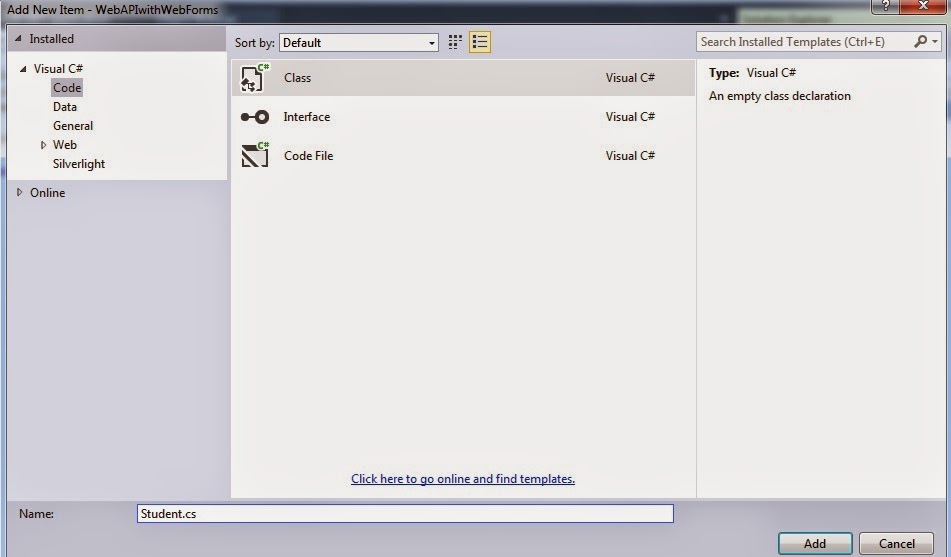
|
1 2 3 4 5 6 |
public class Student { public int StudentID { get; set; } public string FirstName { get; set; } public string LastName { get; set; } } |
ASP.NET Web API 2 Hands On
Building RESTful Web Service using ASP.NET Web API2 taking from beginner level and learn how to use the new features of Web API2 i.e. Attribute Routing etc. More Details
3. Add Controller class


|
1 2 3 4 5 6 7 8 9 10 11 12 13 14 15 |
public class StudentsController : ApiController { Student[] students = new Student[] { new Student { StudentID = 1, FirstName = "Imran", LastName = "Ghani" }, new Student { StudentID = 2, FirstName = "Salman", LastName = "Ahmad" }, new Student { StudentID = 3, FirstName = "Rehan", LastName = "Ahmad" }, new Student { StudentID = 4, FirstName = "Zeeshan", LastName = "Khalid" } }; public IEnumerable<Student> GetStudents() { return students; } } |
4. Add Routing Info to Global.asax
|
1 2 3 4 5 |
RouteTable.Routes.MapHttpRoute( name: "DefaultApi", routeTemplate: "api/{controller}/{id}", defaults: new { id = System.Web.Http.RouteParameter.Optional } ); |
Now, if you run your application and try to access the following URL, you will get a JSON response of student data from api controller. Try to access the following URL and see:
Note: Don’t forget to add “using System.Web.Http” in Global.asax.cs file.
- A. GET
- B. POST
- C. DELETE
- D. PUT
To further test your ASP.NET Web API skill, Take a Complete FREE Online Test or MCSD Practice Exam: 70-486 (Developing ASP.NET MVC Web Applications). Simply Click Here.
Correct Answer: D
5. Make a Client Call
Create a new Web Form page “WebFormClient” and add the following code to call your ASP.NET Web API Controller i.e. “StudentsController” using jQuery.Main content area will contain the following HTML for rendering Students data.
|
1 2 3 4 5 6 7 8 |
<table border='1' id="students"> <!-- Make a Header Row --> <tr> <td><b>StudentID</b></td> <td><b>FirstName</b></td> <td><b>LastName</b></td> </tr> </table> |
using jQuery, make a call to our controller and fetch data as follows:
// GET ALL
|
1 2 3 4 5 6 7 8 9 10 11 12 13 14 15 16 17 18 19 20 21 22 23 |
function GetAllStudents() { $.ajax({ type: "GET", url: "http://localhost:xxxx/api/Students/", contentType: "json", dataType: "json", success: function (data) { $.each(data, function (key, value) { //stringify var jsonData = JSON.stringify(value); //Parse JSON var objData = $.parseJSON(jsonData); var id = objData.StudentId; var fname = objData.FirstName; var lname = objData.LastName; $('<tr><td>' + id + '</td><td>' + fname + '</td><td>' + lname + '</td></tr>').appendTo('#students'); }); }, error: function (xhr) { alert(xhr.responseText); } }); } |
Hopefully, above step by step approach will be helpful in building Web API with ASP.NET Web Forms Application.
Other Related Web Development Articles:
- A practical guide to ASP.NET Web API
- Solution to browser back button event
- WebForms Vs ASP.NET MVC
- ViewBag Vs ViewData Vs TempData
- Building your First ASP.NET MVC 5 Application with Entity Framework
- What’s new in WCF 4.5
- WCF Tutorial step by step
- Creating your first WCF REST Service
Top 10 Interview Questions and Answers Series:
- Top 10 HTML5 Interview Questions
- Top 10 ASP.NET Interview Questions
- Comprehensive Series of ASP.NET Interview Questions
- Top 10 ASP.NET MVC Interview Questions
- Top 10 ASP.NET Web API Interview Questions
- Top 10 ASP.NET AJAX Interview Questions
- Top 10 WCF Interview Questions
- Comprehensive Series of WCF Interview Questions